A Snapchat chat mockup is one of the fastest ways to create a realistic conversation screen for content creation, UI references, classroom examples, and entertainment or learning research. With Zoobic, you can open a chat-focused screenshot template in a browser-based online editor, edit the conversation fields directly, adjust the phone status bar, and export PNG in a few minutes.
Zoobic is built for fast visual editing. It offers 8000+ screenshot templates across 300+ categories, including chat, wallet, banking, social app, and messaging-style layouts. For a Snapchat-style conversation screen, this means you can start with a ready-made screenshot template, change the text fields, update avatars, and refine the interface without Photoshop. The workflow is simple: choose a layout, edit the form fields, preview the result live, and export PNG when everything looks right.
For creators who need a clean mockup that feels mobile-native, the combination of a live preview, simple field editing, and polished output makes Zoobic a practical choice. The result is a realistic conversation screen that works well for presentations, concept art, UI demos, and social content.
Quick Start: Build a Snapchat Chat Mockup in Minutes
The easiest way to make a Snapchat chat mockup is to begin with a chat-style screenshot template rather than designing from scratch. In Zoobic’s online editor, the conversation layout is already prepared for you. You only need to update the content and tune the details.
The basic process is straightforward:
- Select a chat template
- Edit the fields
- Adjust the phone status bar
- Export PNG
Because Zoobic is a browser tool, everything happens in one place. The left side shows a live preview, while the right side contains the editable fields. Every change you make to names, messages, timestamps, or profile images appears immediately in the preview. That makes it easier to keep the mockup balanced and readable.
A good Snapchat chat mockup should feel casual and natural. Short lines, simple wording, and clear spacing usually work best. If the screen is meant to feel like a phone capture, the conversation should be easy to scan on a mobile-sized screenshot template.
What to edit first
Start with the elements that shape the entire conversation:
- Sender names
- Profile images
- Message bubbles
- Timestamps
- Status bar details
Once those are in place, you can refine spacing and the overall look. The goal is a believable chat screen that looks polished when you export PNG.
Choosing the Right Snapchat Chat Layout
A strong Snapchat chat mockup depends on picking the right layout before editing. Not every conversation screen needs the same structure. Some scenes work best as a clean single-thread view, while others need a longer back-and-forth thread.
Common layout types
- Single conversation screen
- Reply-style chat view
- Stacked message thread
- Minimal conversation layout with strong header focus
Each option creates a slightly different tone. A simple layout feels clean and easy to read. A longer thread gives the viewer more context and can support a more detailed story. Since Zoobic has 8000+ screenshot templates across 300+ categories, it is easier to find a layout that matches the mood you want.
The search and category tools are also useful when you want to locate a Snapchat chat mockup quickly. Search terms like chat, message, conversation, or social app layout can bring you close to the right online editor template in less time.
Editing the Conversation for a Natural Look
A believable Snapchat chat mockup is not just about the interface. The text itself matters just as much. Messages should sound casual, short, and human. Since Snapchat-style messaging often feels fast and lightweight, the conversation should avoid long blocks of text.
Message writing tips
Use a mix of:
- Short replies
- Simple questions
- Casual reactions
- Brief follow-ups
This keeps the thread feeling like a real conversation rather than a polished script. In a screenshot template, too much text can reduce readability, especially on mobile-sized screens. A clean mockup usually benefits from fewer, clearer lines.
Timestamps and message order
Timestamps help the screen feel grounded and real. If the timing appears too uniform, the thread may feel flat. A more believable layout usually has:
- Clear message order
- Even spacing
- Natural timing gaps
- Consistent alignment
When the order, spacing, and timestamps work together, the final screenshot template looks more like a phone capture. Before you export PNG, check the live preview to make sure the rhythm is readable and visually balanced.
Customizing Names, Avatars, and Identity Details
Names and avatars are essential to a convincing Snapchat chat mockup. They help the viewer understand who is speaking and make the screen feel like a real conversation capture. Zoobic lets you update these details directly in the form-based online editor, so you can shape the identity of each chat participant without any advanced design tools.
Name fields
Use short display names that fit neatly in the header. Long names can crowd the interface, especially if the template is compact. A simple name structure usually improves clarity and makes the mockup easier to scan.
Avatar fields
Profile images should be chosen with small-size readability in mind. Since avatars appear in a limited space, clean cropping and clear framing matter more than visual complexity. A well-matched avatar helps the entire screenshot template feel more polished.
Keep the identity consistent
The names, avatars, and message tone should all support the same conversation style. If the screen is casual, keep the wording casual. If the scene is meant for a presentation or content draft, keep the layout clean and easy to understand.
Zoobic’s live preview is useful here because it lets you see how the names and images interact with the rest of the Snapchat chat mockup before you export PNG. That makes the final result more coherent and visually stable.
Adjusting the Phone Status Bar for a Realistic Screenshot
A realistic Snapchat chat mockup should look like it came from an actual phone, and the status bar plays a big role in that. Zoobic includes phone status bar controls so you can fine-tune the top area of the screen and make the screenshot template feel more authentic.
Useful status bar fields
You can adjust details such as:
- Time
- Battery level
- Signal strength
- Carrier name
- Dual-SIM indicators
- Notch or island-style top elements, if supported
These small changes help the mockup feel finished. For example, changing the time can make the conversation match a specific moment. Adjusting battery and signal indicators can also improve the realism of the screen.
Keep the top area clean
The status bar should support the conversation, not distract from it. A cluttered top area can pull attention away from the chat itself. When editing in the browser interface, keep the top bar proportional and simple so the final Snapchat chat mockup remains focused on the message thread.
This is one of the reasons an online screenshot template editor is useful. You can refine these details without leaving the page, then export PNG once the screen looks polished.
Step-by-Step Workflow in Zoobic
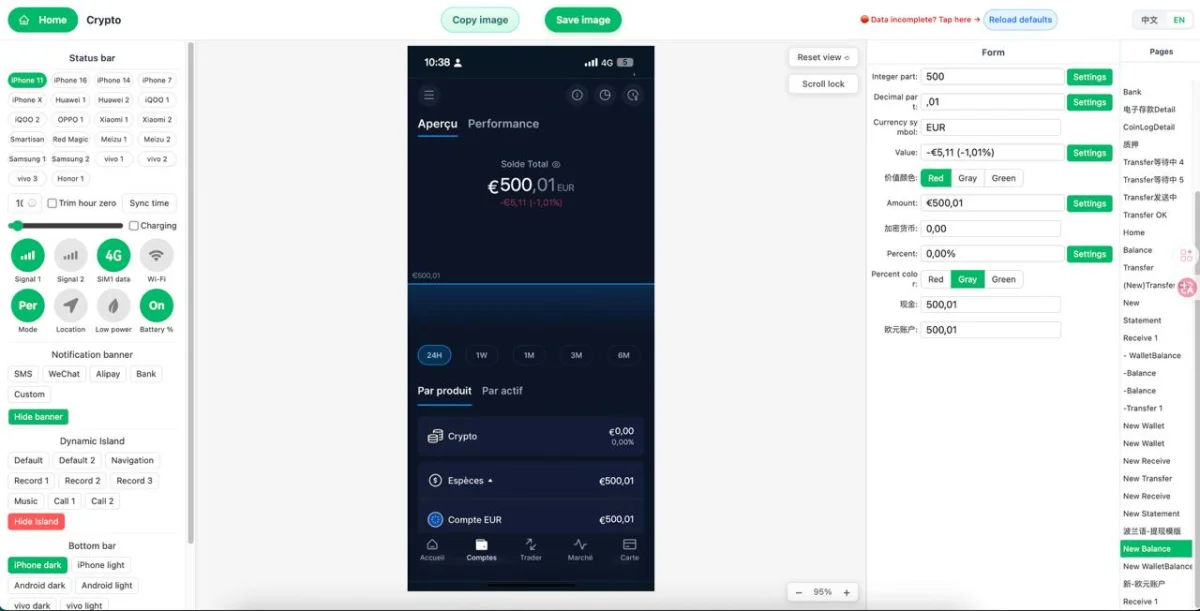
Creating a Snapchat chat mockup in Zoobic is designed to be fast and repeatable. The browser-based workflow is simple enough for beginners, but flexible enough for detailed visual editing.
Step 1: Select a Snapchat-style template
Start with the closest screenshot template available. Check the header, bubble shapes, and spacing before you begin. A good base template saves time and makes the rest of the edit easier.
Step 2: Enter the conversation content
Fill in sender names, message lines, timestamps, and avatar fields. As you type, the live preview updates immediately on the left side of the editor. This lets you evaluate readability in real time and keep the mockup visually balanced.
Step 3: Tune the visual details
Next, refine the layout:
- Adjust the phone status bar
- Check avatar placement
- Review spacing between bubbles
- Remove any unnecessary content
These small decisions can make the Snapchat chat mockup feel much more convincing. The live preview is especially helpful when deciding whether a line is too long or whether a message needs to be shortened.
Step 4: Export the final image
Best Field Settings for a Clean Chat Screen
The quality of a Snapchat chat mockup often comes down to how you handle the field settings. Small adjustments can improve readability, spacing, and overall realism.
Sender and contact settings
Use clear display names that fit the header. Keep the naming simple and consistent so the viewer can understand the conversation immediately. A compact name often works better than a long one in a screenshot template.
Message and timestamp settings
Messages should be concise and easy to scan. Timestamps should match the pacing of the thread. If every line appears to happen at the same pace, the conversation may feel less natural. The best mockup usually has a rhythm that feels like a real mobile chat.
Visual field settings
Choose profile images that still look sharp at small size. Keep the cropping simple. Make sure the bubble contrast and header structure support readability. Zoobic’s online editor makes it easy to test these adjustments in the live preview before you export PNG.
Common Use Cases for a Snapchat Chat Mockup
A Snapchat chat mockup can serve many creative and educational purposes. Because it is built from a realistic screenshot template, it works well in contexts where a conversation screen adds clarity or visual interest.
Social content and storytelling
Use the mockup for posts, carousels, story-style visuals, or concept mockups. A chat screen can help communicate a message quickly and visually. Zoobic’s clean output makes it easy to keep the design polished.
Presentation and classroom examples
A Snapchat chat mockup is useful for explaining digital communication, app interface structure, or social media behavior. Since the content is editable in the browser, it can be adapted for different teaching or presentation needs.
UI reference and creative planning
You can also use the screenshot template as a reference for screen design, layout studies, or creative planning. The mockup gives you a structured visual asset that can be reused across slides, drafts, and internal reviews.
In all of these cases, the ability to edit the fields directly and export PNG quickly is what makes Zoobic practical.
How to Make the Screen Look More Realistic
Realism in a Snapchat chat mockup comes from restraint. Simple layouts often feel more convincing than overloaded ones. The interface should resemble a real mobile conversation without unnecessary decoration.
Keep the conversation natural
Use believable spacing between replies. Mix short acknowledgments with quick follow-up lines. Avoid making every message too polished. A good mockup feels casual and light.
Match the visual tone
Snapchat-style messaging usually feels fast, informal, and mobile-friendly. Keep the text flow simple, and avoid formatting that interrupts the app-like appearance. A clean screenshot template with consistent bubbles and aligned names will look more authentic after you export PNG.
Review on a phone-sized screen
Before final export, view the layout as if you were reading it on a phone. Make sure the text is still legible and the top bar, bubbles, and avatars are balanced. The live preview in Zoobic helps you check this quickly inside the online editor.
Exporting and Reusing the Mockup
One benefit of building a Snapchat chat mockup in Zoobic is that the final output is easy to reuse. After you finish editing, you can export PNG for slides, content drafts, or visual planning.
High-quality export
The exported file should remain crisp and readable. This matters when the image is placed into presentations or resized for different formats. A clear screenshot template export gives you more flexibility later.
Reuse across different formats
You can place the mockup into:
- Presentation decks
- Social media visuals
- Concept boards
- Internal reviews
- Classroom materials
Because the editing happens in the browser, you can also return to the same layout and make small changes for alternate versions. That makes it easy to create a family of conversation screens from one base template.
Final Check Before Export
Before you finish a Snapchat chat mockup, do one final review of the full screen. Check the names, messages, avatars, timestamps, and status bar together. If the layout feels clean and readable, the screen is ready to save.
Final checklist
- Text is readable on a mobile-sized screen
- Names and avatars match the conversation
- Timestamps support the pacing
- Status bar looks proportional
- The overall screenshot template feels balanced
- The result is ready to export PNG
Zoobic makes this final step simple because the live preview shows the exact result you are about to save. That helps ensure the final mockup is polished, consistent, and easy to use in creative or educational projects.
仅供娱乐与学习研究,请勿用于违法用途。