A Stripe statement mockup is a practical way to present billing, payment, or subscription information as a polished visual asset. For brand decks, product pages, social graphics, and SaaS demos, the goal is usually not to design a full financial interface from scratch. The goal is to create a clean, credible screenshot template that looks organized, reads quickly, and supports the story you want to tell.
That is why a good mockup workflow matters. Instead of spending time drawing every line, label, and spacing detail manually, you can start from a structured online editor template, change the visible fields, and export PNG when the layout looks right. The result is a presentation-ready image that fits modern fintech, billing, and subscription branding.
Zoobic, also known as 臻宝作图, is built for this exact type of workflow. It provides 8000+ templates across 300+ categories, including banking, wallets, chat, ecommerce, and payment-style screens. For a Stripe statement mockup, that means you can open a relevant screenshot template in the browser, edit the content with form fields, and save a polished visual without using Photoshop. It is a fast and structured way to support learning, research, content creation, and brand presentation.
What a Stripe statement mockup is used for in a brand presentation
A Stripe statement mockup works best when the visual needs to communicate payment activity in a clean and familiar format. Common use cases include pitch decks, product case studies, landing pages, onboarding pages, and social media posts. In each case, the image should feel polished and easy to scan. It should not look cluttered or overly technical.
For a startup presentation, a statement-style image can help show a subscription payment, invoice summary, or transaction confirmation. For a SaaS feature page, it can act as a hero image that supports billing or finance messaging. For a content team, it can become a supporting graphic that visually explains payment status, invoice structure, or monthly billing. A good mockup turns abstract payment information into a clear visual story.
Readers usually want three things first: speed, realism, and flexibility. They want a fast way to create the image, a layout that looks credible, and editable fields that match the message. That is exactly where a screenshot template is useful. A structured template gives you the right hierarchy from the start, so you can focus on content instead of layout construction.
A compact receipt-style layout is often enough for a small banner or thumbnail. A fuller statement layout is better when the goal is to show more detail, such as invoice reference, customer name, or billing period. A mobile-style mockup works well for app demos and social posts. A desktop-style screen fits more formal product presentations. Matching the layout to the goal keeps the final visual clear and brand-ready.
How to choose the right Stripe statement template
The best Stripe statement mockup starts with the right template choice. If the image will appear in a pitch deck or a detailed case study, choose a template with enough structure to show multiple fields. If the image will be used as a headline visual, a simplified screenshot template is usually better because it keeps the focus on one key payment line. If the visual is intended for mobile viewing, a phone-style mockup feels more natural.
Think first about the placement. A landing page hero often needs a larger visual with strong hierarchy. A social post may need a simpler card that reads instantly on a small screen. An app concept board may benefit from a realistic device frame and top status bar. Each of these choices affects how the final mockup feels to the viewer.
It also helps to match the content to the layout. A brand announcement may only need merchant name, amount, date, and status. A product demo may include invoice ID, payment method, and billing cycle. A more detailed internal concept may include subtotal, tax line, and support reference. A marketing asset usually benefits from a cleaner composition and fewer text blocks. A screenshot template should always support the story, not compete with it.
One useful rule is to use the smallest layout that still communicates the full message. This keeps the image light, readable, and presentation-friendly. In Zoobic’s online editor, you can test different template styles quickly, compare the live preview, and choose the version that best fits the brand tone before you export PNG.
Fields to edit in a Stripe statement mockup
A strong Stripe statement mockup usually depends on a handful of core fields. The most important ones are merchant or company name, customer name, amount, currency, payment date, transaction or invoice ID, and status. These are the details readers expect to see in a billing or payment visual. When they are arranged clearly, the image feels complete and easy to trust as a presentation asset.
Optional fields can make the layout feel more realistic and more aligned with your message. These may include the last four digits of the card, billing period, subscription cycle, payment method label, subtotal, tax line, or support reference. In a well-designed screenshot template, these details add depth without making the screen feel crowded.
Text balance matters a lot. Short values fit better in narrow headers. Long company names may need simplification so they do not wrap awkwardly. Amounts and dates should follow a consistent format across the layout. If one section uses a short date style and another uses a full month format, the visual can feel less polished. A clean mockup keeps all formatting aligned.
For example, if the amount is shown as $48.00, the rest of the numeric elements should use the same clarity and spacing. If the date is written as Jan 18, 2026, keep that pattern throughout the image. The same idea applies to transaction IDs and billing labels. The more consistent the text treatment, the better the final screenshot template performs in a brand presentation.
Zoobic makes this part easy because the fields are editable directly in the browser. You can change the visible values, watch the preview update in real time, and fine-tune the composition before you export PNG.
Build the mockup in the browser with Zoobic
Zoobic is an online editor designed for structured visual creation. Instead of building a payment interface manually, you start from a template, edit values in form fields, and review the live preview as you work. For a Stripe statement mockup, this workflow is especially useful because the layout already contains the right visual structure. You only need to adjust the content.
The process is straightforward in the browser:
- Open Zoobic
- Search for a billing, payment, or Stripe statement mockup style screenshot template
- Choose a mobile or desktop layout based on your presentation goal
- Review the preview on the left
- Update fields in the form panel on the right
- Check spacing and alignment in real time Zoobic’s template library is large, which helps when you need a specific visual mood. It includes banking, wallet, ecommerce, chat, and fintech-style templates, so it is easier to find a layout that feels close to your presentation need. That matters because a mockup should support the brand story, not force you into a generic design.
The live preview is one of the most practical features. When you edit the merchant name, amount, or status, the layout updates immediately. That makes it easier to judge whether the text still fits naturally in the frame. If the preview feels too tight, you can shorten values or choose a different screenshot template before exporting. This browser-based workflow is efficient for marketers, founders, designers, and content teams who need polished visuals quickly.
Make the statement look polished and realistic
Visual hierarchy is important. In most payment-style visuals, the amount is the main focal point. The merchant name and status follow. Secondary information such as invoice ID, payment method, or billing period should sit lower in the hierarchy and use a smaller visual weight. A good screenshot template helps you keep this structure without manual layout work.
Consistency also improves the final image. If the header uses one style of capitalization, the rest of the fields should follow the same tone. If the currency format is set for one region, keep the decimal and symbol style stable across the whole card. Even small inconsistencies can make a mockup feel less refined.
A clean composition is usually more effective than a crowded one. Leave breathing room around labels, separators, and icons. Avoid stacking too many values into a small card. The more readable the screen is at a glance, the better it functions as a brand presentation visual. That is one reason structured online editor templates are so useful: they encourage clean spacing from the beginning.
Use mobile status bar details for a screen capture style
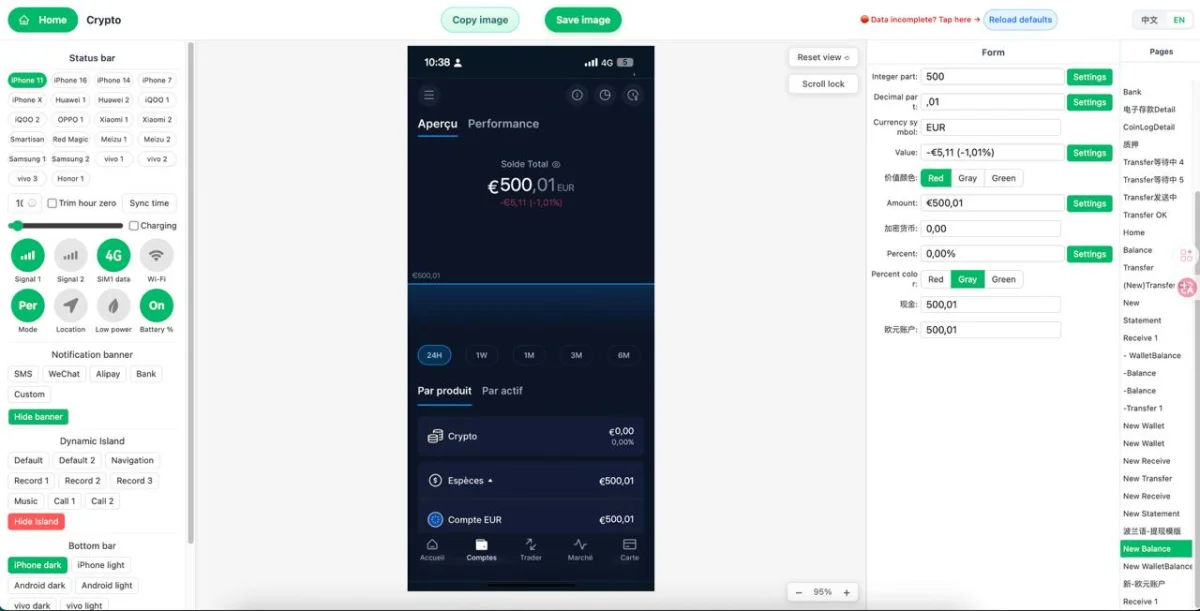
If your Stripe statement mockup is meant to look like a real phone screenshot, the status bar matters. Time, battery, signal, carrier text, and other device indicators help the image feel native. These details are small, but they add realism and make the visual fit naturally into app demos, concept boards, and social content.
Zoobic supports status bar editing as part of its browser workflow, so you can align the device chrome with the rest of the screen. If the template offers different device styles, choose the one that best matches the statement layout. A phone-style screenshot template should feel cohesive from top bar to content area.
This is especially valuable when the final visual will be seen in a feed or a mobile-first landing page. In those environments, viewers notice whether the screenshot feels natural. A well-matched status bar makes the mockup look intentional and complete. It also helps the image sit better inside product pages or app presentation slides.
When the device frame and top bar are correct, the statement screen becomes easier to believe as a real product capture. That is useful for learning materials, design references, and content creation. You can keep the styling consistent while still customizing the visible content, then export PNG for publishing or presentation.
Create different presentation angles from one template
One of the strengths of a well-built Stripe statement mockup is that the same layout can support multiple presentation goals. With a few field changes, you can turn one template into a hero image, a feature visual, a billing concept, or a social graphic. That flexibility makes the mockup useful for teams that need to produce several assets quickly.
For example, a SaaS payment success visual can show a succeeded payment with a plan name, amount, and invoice reference. A subscription billing screenshot can show monthly renewal details, payment method label, and next billing date. A fintech-style announcement graphic can highlight a large transaction amount with a minimalist layout. Each version uses the same core screenshot template, but the content shifts to match the message.
Zoobic’s form-based editing makes this easy inside the online editor. You do not have to rebuild the visual every time. Instead, you can switch merchant names, adjust the amount, change the status, and update the billing period. That keeps the workflow fast while still giving you multiple presentation angles from one starting point.
This also helps with content consistency. If you are preparing a case study series or a set of brand assets, keeping the same layout language across visuals makes the whole collection look more organized. A reusable mockup template creates that consistency while reducing production time.
Export the final Stripe statement mockup as a PNG
After the content and layout feel balanced, it is time to finish the image cleanly. Review every visible field in the preview, confirm that spacing is stable, and make sure the statement fits the canvas without cropping. A good Stripe statement mockup should look sharp and uncluttered at the final export stage.
Export quality depends on preparation. Check that margins stay even around the outer edge. Make sure the amount line remains readable. Verify that the status label is clear. If the statement uses a device frame or status bar, confirm that those details align with the rest of the screen. These small checks help the final screenshot template feel complete.
A polished export is the final step that turns the template into a usable visual asset. When the image is ready, it can support brand storytelling, educational materials, and clean presentation design without extra manual work.
Practical examples of Stripe statement mockups for brand content
A well-made Stripe statement mockup can be adapted to many brand scenarios. The format is flexible enough to support product storytelling while still staying simple and readable. Here are a few practical examples.
A SaaS payment success visual can show a successful charge, a product or plan name, a date, and an invoice ID. The image works well in a feature page or case study because it communicates completion and clarity. A compact screenshot template is often enough for this purpose.
A subscription billing screenshot can include monthly pricing, renewal details, a payment method label, and a customer name. This kind of mockup is useful for onboarding pages or help articles because it helps explain recurring billing in a familiar format.
A fintech-style announcement graphic can highlight a larger transaction amount and a refined statement header. The layout should remain minimal so the focal point stays on the payment result. This type of mockup works well for social posts, ads, or presentation slides.
A product demo visual can include a billing period, reference number, and status line. That gives the audience enough context without overwhelming them. In each example, the goal is the same: use a clear online editor workflow to shape the visible content, then export PNG when the composition is ready.
Keep the workflow simple for learning, demo, and content creation
A Stripe statement mockup is most effective when it supports a clear presentation purpose. It can be used for learning, research, content creation, brand design drafts, and internal demos. The value comes from speed and structure. You start with a template, adjust the text, and finish with a polished visual.
Zoobic is especially useful here because its workflow stays simple. Open the template in the browser, edit the fields in the right panel, and watch the preview update live. The result is a practical screenshot template workflow that does not require advanced design software. For many teams, that is the fastest way to produce a professional-looking payment or billing image.
It also helps to keep the final use case in mind. If the visual is for a brand deck, keep the layout clean and formal. If it is for social content, keep the composition minimal and readable. If it is for learning or research, keep the field structure clear so the screen is easy to explain. A well-edited mockup should always feel intentional.
For best results, stay within the intended use: entertainment, learning, and research. Use the layout as a presentation asset, not as a way to mislead. That keeps the content professional and aligned with lawful creative use. With the right template and a careful online editor workflow, it is easy to create visuals that feel polished and brand ready.
Quick checklist before you publish or present the image
Before you use the final image, run through a short checklist. This helps confirm that the Stripe statement mockup is clean, readable, and ready for presentation.
- Merchant name is short and easy to read
- Amount, date, and currency are formatted consistently
- Status label matches the message you want to show
- Supporting fields do not crowd the layout
- Status bar and screen proportions look natural
- The preview looks balanced in the browser
- The image is sharp after export PNG
If the composition feels too busy, remove extra fields. If the header feels too empty, refine the spacing or choose a better screenshot template. If the text is too long, shorten the values before exporting. Small adjustments often make the biggest difference.
A strong final result is a mockup that feels clean, modern, and brand ready. With Zoobic’s structured online editor, you can move from template selection to final PNG quickly while keeping the visual style consistent. That makes the workflow practical for content teams, designers, and marketers who want a reliable way to present payment information in a polished format.