If you searched for Trust Wallet Editor, you are most likely looking for a fast way to create a clean wallet-style screenshot template that can be edited online, previewed instantly, and exported as a polished image. The need is usually practical: make a wallet mockup for a blog visual, UI reference, learning material, presentation slide, or content creation project without opening Photoshop or rebuilding a mobile screen from scratch.
- find a wallet-style screenshot template quickly
- change visible values with form fields in an online editor
- preview updates instantly in the browser
- adjust mobile details like time, battery, and signal
- export PNG for immediate use in articles, slides, or graphics
Zoobic follows this workflow closely. It offers 8000+ templates across 300+ categories, including wallet, banking, chat, crypto, payment, and mobile interface scenes. That means users can find a screenshot template that already looks close to their goal instead of starting from a blank canvas. In a browser-based editing flow, this matters a lot because the editing task becomes more like guided content replacement than full design work.
Start with the right screenshot template
In Zoobic, you can browse by category or search with wallet-related keywords until you find a screen close to the one you want. The right screenshot template should match the structure of your final mockup as closely as possible. That means looking at the layout, not just the title.
Before editing, check these elements:
- token list layout
- visible action buttons
- transaction rows, if present
- mobile status bar
- spacing between labels and values
If you want a clean asset overview, avoid a crowded activity page. If you need a visual for a crypto explainer, choose a screenshot template that already contains enough space for clear token rows. The goal is to reduce unnecessary edits and keep the final result readable.
This is one of the main strengths of a good online editor. By choosing the right base template, you save time later in the process. The better the starting point, the less cleanup the final mockup needs.
- account label
- token names
- token amounts
- fiat value display
- section headings
- timestamps
- transaction labels
- status text
Here are a few good habits when editing a wallet-style screenshot template:
- keep decimal precision consistent
- use short and familiar token symbols
- avoid overly long account labels
- align values in a visually balanced way
- keep the number of visible items focused
Build a clean asset list that looks polished
- BTC
- ETH
- USDT
When the list is kept short and balanced, the screen feels more modern and easier to read. That is especially important for content creators who need a mockup that looks good both on desktop and mobile. A concise asset list also helps the final PNG export look sharper and more intentional.
Adjust transaction details for a realistic screen
In a transaction-focused screenshot template, the editable fields often include:
- asset name
- send or receive label
- amount
- date
- time
- network
- status text
A short receive-history mockup can be especially effective. It gives the visual enough context without making it feel crowded. If your goal is a tutorial image, you usually want the details to be easy to scan rather than highly dense. That means editing only the rows you need and keeping the rest of the layout simple.
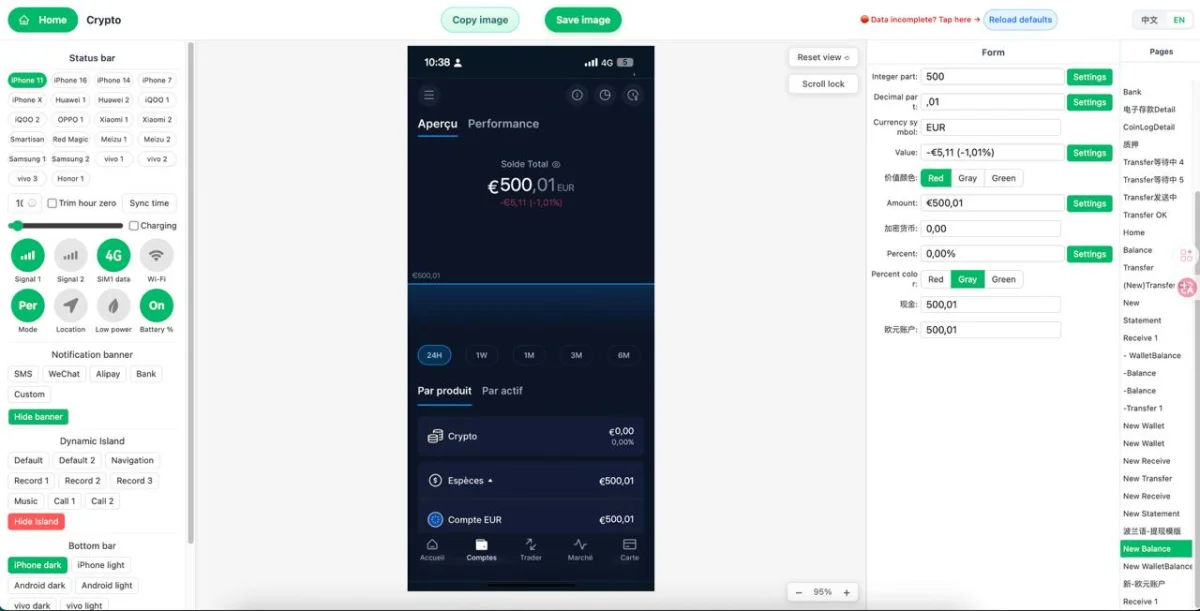
The live preview in the browser helps here as well. Each update can be checked immediately, so you can compare spacing and alignment after every change. In a good online editor, that instant feedback is what makes the workflow fast and reliable.
For a transaction-style screenshot template, less is often more. A small number of clear entries usually looks better than a long activity list. The purpose of the mockup is to communicate the idea cleanly, not to fill every line on the screen.
Fine-tune the mobile status bar for a natural screenshot look
If your image is meant to look like a real phone screenshot, the status bar should match the tone of the layout. A clean daytime timestamp, strong signal indicators, and a high battery level often work well for a neutral, presentation-style visual. If the mockup is minimal, the top bar should also stay minimal.
A consistent top bar also improves the final export PNG. Small details like these are easy to overlook, but they often have a strong effect on how polished the image feels.
- blog headers
- YouTube thumbnails
- crypto explainers
- UI breakdown posts
- presentation slides
- course materials
- product concept visuals
- design reference images
Zoobic is especially practical for this because it works directly in the browser. That makes quick changes easy during review, collaboration, or iteration. A team can test different layouts, compare visual styles, and settle on the clearest design faster than with manual editing.
Export a high-quality PNG that is ready to use
Before exporting, check a few final points:
- text alignment
- number formatting
- asset order
- status bar details
- overall screen cleanliness
- readability at smaller sizes
This quick review is worth doing because it helps catch small visual issues before the image is saved. If the mockup will be used as a thumbnail, it is a good idea to check how it looks when scaled down. A screenshot template that remains clear at smaller sizes is usually the strongest choice.
The final PNG can be used in blog posts, social graphics, product decks, educational content, and UI references. The main benefit of this workflow is simple: what you preview is what you export. That makes the online editor efficient and dependable for creators who need polished images quickly.
If you want a simple process to follow, use this sequence:
- Open Zoobic in the browser.
- Search for a wallet-related screenshot template.
- Choose a layout that matches your goal.5. Refine token names, amounts, and visible labels.
- Adjust the transaction section if the screen includes one.
- Fine-tune the status bar for a natural mobile look.
- Review the preview carefully.
- Export PNG and place the image in your content.
This workflow works well because it keeps the editing process focused. You are not trying to design every detail from scratch. You are using a structured screenshot template, replacing the visible content, and saving a clean mockup that is ready for use.
Conclusion: a fast way to create a clean wallet-style mockup
For content creators, educators, and teams, the value is clear: choose the right screenshot template, edit the visible details, keep the layout consistent, and export PNG when the screen looks ready. The result is a professional wallet-style image that works for learning, presentation, and content creation.
仅供娱乐与学习研究,请勿用于违法用途。