A bank transfer template is the fastest way to create a polished banking-style visual without rebuilding an interface from scratch. Instead of drawing every line, button, and amount manually, you open a screenshot template in an online editor, replace the visible fields, check the live preview in the browser, and export PNG when the mockup is ready. That workflow fits content teams, educators, product designers, and creators who need clean transaction-style visuals for presentations, UI references, and creative assets.
Zoobic is designed for this use case. It is a browser-based screenshot template editor with more than 8000 templates across 300+ categories, covering bank transfers, receipts, balances, wallets, transaction details, chats, and many other interface scenes. The editing process is simple: preview on the left, editable form on the right, instant updates in real time, and high-definition export PNG output when the layout is complete. It works well for mockup production, learning materials, demos, and content creation. For compliance, it is best used only for entertainment and learning research, not for illegal purposes.
What a bank transfer template means in practical use
Most templates in this category include the key details users expect to see in a banking interface: sender name, recipient name, amount, currency, date, time, transaction status, reference number, and sometimes an account mask, fee line, or remaining balance. Because the structure is already prepared, it is easier to focus on the story the image should communicate rather than the mechanics of design.
This is why many users prefer a bank transfer template over a general graphics tool. A form-based browser workflow is faster than moving text layers manually. It also keeps the result visually consistent, which matters when you want a mobile screenshot mockup to look clean and balanced. Zoobic supports this approach by offering a dedicated online editor built around editable interface templates rather than freeform canvas design.
When to use a bank transfer template
A bank transfer template is useful when the goal is a clear visual mockup for communication, not a custom-designed app concept from the ground up. Common use cases include product demos, onboarding slides, UI studies, blog illustrations, training decks, and scenario-based content visuals. In each of these cases, a screenshot template helps present information in a familiar screen format that readers can understand quickly.
For example, a tutorial may need a transfer success image to explain a payment flow. A product team may need a receipt mockup to review wording and hierarchy on a confirmation screen. A writer may need a transaction detail layout to support an article about banking app UX. These are all situations where a bank transfer template saves time while still producing a realistic visual reference.
The strongest results come from matching the template to one exact scene. A success page should look like a success page, a receipt should look like a receipt, and a history item should look like a history item. Zoobic makes this easier because its template library is organized by scenario and searchable by keyword. Instead of forcing one layout to fit every purpose, you can choose a screenshot template that already matches the intended screen state and then use the online editor to refine the details.
How to choose the right bank transfer template
Choosing the right bank transfer template starts with one question: what should the screenshot show at a glance? A transfer success mockup usually centers on the amount, recipient, and completion status. A receipt-style template often gives more space to timestamp, reference number, and payment method. A transaction detail screen may include fees, notes, account masks, and updated balance information. The clearer the goal, the easier it is to select the right screenshot template.
After identifying the scenario, review the editable fields. A useful template should allow updates to sender name, recipient name, amount, currency, date, time, transaction ID, and status. If the layout is mobile-based, it should also support status bar details such as battery level, signal, Wi-Fi, and carrier text. These small details help the mockup feel complete and visually natural.
Zoobic helps streamline this selection process. You can browse categories or search directly for bank, wallet, receipt, or transfer-related layouts. Once you open a candidate template in the browser, the live preview shows how much space each field has, while the form panel makes it clear what can be edited. That combination reduces guesswork and helps you choose a bank transfer template that fits your exact content needs before you begin editing.
How to edit a bank transfer template in the browser
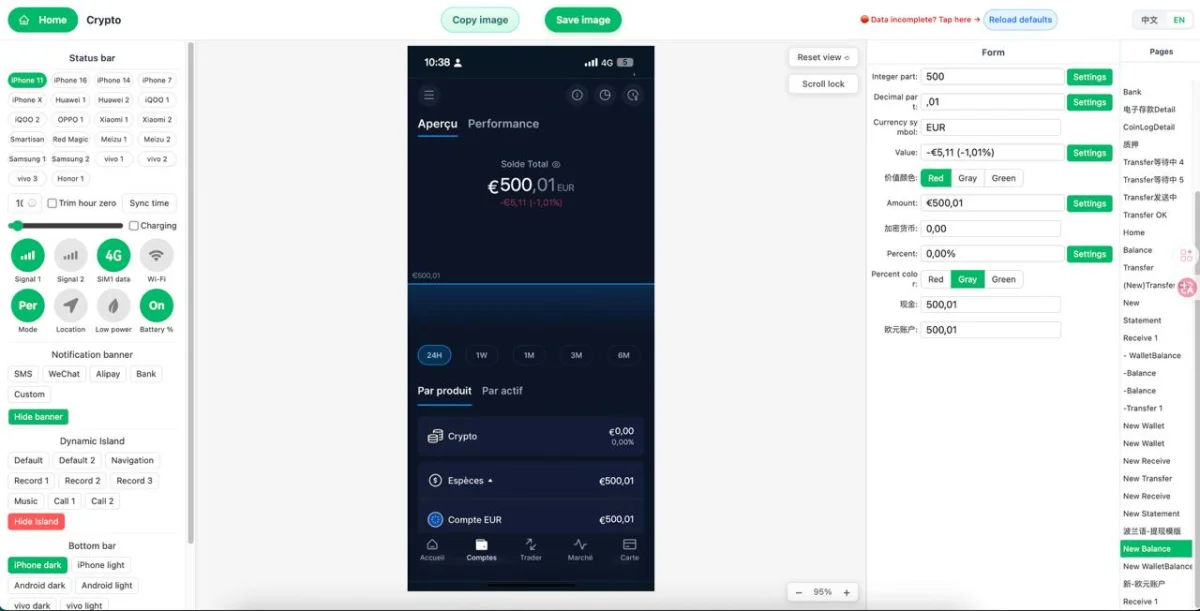
Editing a bank transfer template in Zoobic follows a simple structure. The left side of the workspace displays the live screenshot preview, while the right side contains the editable form. This split view is efficient because you can change values and immediately see how the screenshot template responds. There is no need to switch between windows, drag layers, or manually realign text.
Start with the core information. Enter the sender name, recipient name, transfer amount, currency, and transaction status. These fields carry the main meaning of the screen and should be correct before you work on smaller details. Next, update the timestamp, reference number, note, fee line, or account mask if those elements appear in the selected layout. Working from the largest visual elements to the smallest usually gives the cleanest result.
The advantage of an online editor is speed with structure. A normal design app often requires repeated resizing, font matching, and spacing adjustments. In a dedicated browser editor, the interface framework is already prepared. You are not rebuilding the page; you are customizing a mockup field by field. That makes Zoobic especially effective for anyone who needs repeatable, presentation-ready visuals and reliable export PNG output without extra production steps.
Which fields matter most in a bank transfer screenshot template
Not every field has the same visual weight. In most bank transfer template layouts, the first details viewers notice are the sender name, recipient name, amount, currency, date, time, and transaction status. If these primary fields are clear, properly formatted, and visually balanced, the screenshot already communicates the intended message effectively.
Secondary fields improve realism and completeness. These may include bank name, account mask, transaction ID, receipt number, available balance, service fee, transfer note, or payment channel label. On a receipt-style screenshot template, these smaller lines often play an important supporting role because they help the image feel structured and believable as a mockup.
A simple example shows how this works. Imagine a transfer success screen prepared for a training slide. You enter Emma Lee as sender, James Tan as recipient, $250.00 as amount, 10:42 AM as time, and Completed as the status. Then you add a short reference number and an account mask. The result is concise, readable, and easy to understand at a glance. Zoobic’s online editor is built for this kind of field-by-field customization, making the bank transfer template practical for both quick edits and more polished presentation assets.
How to make a bank transfer mockup look natural on mobile
A polished mobile mockup depends on consistency. The transfer time should make sense alongside the phone status bar. Battery level, signal strength, Wi-Fi indicator, and carrier name should feel like they belong to the same device and locale. If a template includes modern phone interface details, those should stay visually aligned with the transaction screen rather than looking disconnected from it.
Formatting is equally important. A bank transfer template should use one regional style for date, currency, separators, and capitalization. If the mockup suggests a US format, the date and amount should follow that pattern consistently. If it suggests a UK or other regional layout, the same principle applies. Mixed formatting is one of the quickest ways for a screenshot template to feel unpolished, even when the main design looks good.
Zoobic supports this refinement through editable status bar controls and structured field inputs inside the browser workspace. Because changes appear instantly in the preview, it is easy to spot spacing issues, awkward line lengths, or inconsistent formatting before you export PNG. That is one of the biggest strengths of a dedicated online editor: it helps you maintain realism without slowing down the editing process.
A practical workflow for faster screenshot editing
The fastest way to work with a bank transfer template is to prepare your content before opening the template. Gather the names, amount, currency, date, time, transaction status, and any extra details such as reference number or note. Once the content is ready, decide on the single story the screenshot should tell, whether that is a success page, a receipt view, or a transaction detail mockup.
When editing, move from top to bottom. Update the screen title and status first, then the amount and participant names, then the supporting metadata such as timestamp, account mask, and transaction ID. This sequence keeps the layout stable and makes it easier to spot whether one long value affects the spacing of surrounding text. It also reduces the chance of leaving placeholder values behind.
How Zoobic improves bank transfer screenshot editing
Zoobic stands out because it is built specifically for interface-style image editing. Rather than offering a blank canvas, it provides a large template library tailored to realistic UI scenes. The platform includes over 8000 templates across 300+ categories, covering bank transfers, receipts, balances, overseas banking layouts, wallets, chats, and many other screen types. This depth makes it easier to locate a bank transfer template that already matches the visual context you need.
The editing experience is equally practical. In the browser, the left panel shows the live preview and the right panel provides a form-based online editor for changing text and interface details. You can update names, amounts, timestamps, notes, account-related fields, and mobile status bar elements without touching a complex design tool. Because the screenshot template updates instantly, the workflow remains fast even when you need multiple variations of the same mockup.
Best practices for using a bank transfer template responsibly
A bank transfer template works best when used as a creative and educational visual tool. It is ideal for interface study, presentations, tutorials, internal demos, and content design where a realistic screen layout helps explain an idea more clearly. In these situations, a screenshot template supports communication by turning abstract payment flows into visuals that are easier to review and understand.
Clarity should always come before complexity. Keep one screen focused on one purpose, use concise values that fit the layout naturally, and avoid overloading the mockup with unnecessary details. A clean online editor workflow already gives you speed, so there is no need to force extra content into the design. Better formatting, balanced spacing, and consistent language usually create a stronger result than a crowded screen.
Zoobic supports this responsible workflow by making structured editing simple and fast while keeping the output suitable for mockup creation, learning materials, and content production. Used carefully, a bank transfer template can save time, improve presentation quality, and help teams communicate interface ideas more effectively. For compliance, it is appropriate to keep usage limited to entertainment and learning research, and not for illegal purposes.