A Snapchat chat screenshot tool is useful when you need a realistic mobile chat visual for a mockup, presentation, storyboard, learning project, or content draft. Instead of building the interface from scratch, you can start with a ready-made screenshot template, edit the visible chat fields in a browser-based online editor, and export PNG in a few clicks. That is exactly the kind of workflow Zoobic is designed for.
Zoobic is an online screenshot template editor with 8000+ templates and 300+ categories. It is built for fast visual editing in the browser, with a left-side live preview and a right-side form panel for changing text, names, avatars, timestamps, and status bar details. For Snapchat-style chat mockups, that means you can focus on the conversation and the visual layout, rather than spending time on manual design work.
If you are searching for a Snapchat chat screenshot tool, the real goal is usually simple: create a clean, believable chat screenshot mockup that looks polished on a phone screen. With Zoobic, the process stays straightforward. Open the browser, search for a chat-related screenshot template, replace the sample content, check the preview, and export PNG when the layout looks right.
仅供娱乐与学习研究,请勿用于违法用途。
What a Snapchat Chat Screenshot Tool Is Designed to Do
A good Snapchat chat screenshot tool helps you create a chat-style image that feels complete, readable, and mobile-friendly. It is not just about the message bubbles. It is also about the small interface details that make the image feel real: the header, the profile area, timestamps, phone status bar, and spacing between messages.
Zoobic focuses on this type of workflow through a template-first approach. Instead of drawing a UI manually, you choose a matching screenshot template and then update the fields directly in the online editor. This makes it useful for:
- mockups and concept visuals
- presentation slides
- learning and interface study
- storyboards and content planning
- social content and editorial illustrations
Because the editor runs in the browser, there is no need to install Photoshop or rebuild the chat layout yourself. You simply search the template library, open a Snapchat-style or chat-style design, and edit the visible content. The live preview updates as you type, which makes it much easier to keep the screenshot balanced.
For users who want speed, the main advantage is obvious: the screenshot template already contains the structure. That means you spend your time adjusting the content, not rebuilding the frame. When the goal is a clean mockup, that difference matters.
Zoobic also supports a wide range of related screenshot scenes, so the same workflow can be reused across different mobile-style layouts. But for Snapchat chat visuals, the core benefits remain the same: a browser-based online editor, a reliable screenshot template, and easy PNG export at the end.
Why Zoobic Fits Snapchat-Style Chat Mockups
Zoobic is a strong fit for Snapchat-style visuals because it combines template browsing, form-based editing, and instant preview in one browser experience. That structure is especially helpful for chat screenshots, where the layout depends on a mix of text content and interface details.
Here is what makes the workflow efficient:
1. Template library and search
Zoobic includes 8000+ templates across 300+ categories. You can use keyword search or category browsing to find a chat-related screenshot template quickly. This is faster than starting from a blank design and trying to imitate the interface manually.
2. Browser-based editing
The editor works online in the browser, so you can update text fields, avatar images, timestamps, and status bar details without leaving the page. This is ideal for users who want a simple online editor instead of a complex design tool.
3. Live preview
The left-side preview shows changes instantly. That matters because chat screenshots often depend on text length, bubble spacing, and line wrapping. A small change in wording can affect the layout, and the preview helps you correct that before you export PNG.
4. Clean export
When the mockup is ready, you can save it as a high-quality PNG. That format is easy to use in slides, docs, articles, concept boards, and social assets.
Zoobic’s workflow is built around practical editing: search, select, replace, preview, export. For anyone looking for a Snapchat chat screenshot tool, that combination is exactly what you want in a browser-based screenshot template editor.
How to Create a Snapchat Chat Screenshot in the Browser
The basic workflow is simple, even if you are doing it for the first time. Zoobic keeps the process inside the browser, so you can build a Snapchat-style mockup without extra software.
Step 1: Open the editor
Go to the Zoobic browser editor and start with the template library. Search for a Snapchat-style or chat-related screenshot template that matches the look you want.
Step 2: Choose the right layout
Pick a layout that already resembles a mobile chat screen. For a private conversation mockup, choose a clean one-to-one layout. For a presentation or tutorial visual, select a template with clear spacing and readable message blocks.
Step 3: Edit the form fields
Use the right-side fields to change the visible content:
- chat name
- message text
- timestamps
- avatar image
- phone time
- battery and signal details
This is where Zoobic’s form-driven editor is especially useful. You are not editing pixels one by one. You are replacing the fields that define the screenshot.
Step 4: Check the live preview
As you make changes, the preview updates immediately. This helps you spot issues like:
- text that is too long
- awkward line breaks
- crowded bubbles
- header alignment problems
Step 5: Export PNG
When the screenshot looks polished, use the export option to save a high-resolution PNG. That makes the file easy to reuse in content creation, mockup work, or internal presentations.
This workflow is fast because the screenshot template already provides the structure. Your job is to refine the content so the final image feels natural and organized.
Choosing the Best Snapchat Chat Screenshot Template
For a private conversation mockup
Use a template with a simple one-to-one chat layout. Keep the screen clean and focused so the conversation is easy to follow.
For a content or campaign visual
Choose a layout with balanced spacing and clear message separation. That makes the screenshot easier to read in a slide, article, or social post.
For learning or UI reference
Pick a template that includes more interface detail, such as the header, status bar, and visible mobile framing. This makes the screenshot template more useful for study and explanation.
For storyboard scenes
A compact conversation layout works well when you want to show a message exchange quickly. You do not need a long thread. A short, well-structured mockup usually communicates the idea better.
Zoobic’s template library is helpful here because you are not locked into one style. You can search by keyword, browse categories, and choose the layout that best fits the purpose of your screenshot. Once selected, the online editor lets you adjust the content without rebuilding the design.
The main rule is to choose a template that supports readability first. A good Snapchat-style screenshot should look clear at a glance, especially after PNG export.
Editing Messages, Names, and Timestamps Naturally
A strong chat screenshot depends on the details inside the conversation. In Zoobic, the form-based editor lets you update each field directly, which is ideal for this type of screenshot template.
Keep the conversation focused
A short chat often works better than a long one. Four to eight messages are usually enough for a clean mockup. This keeps the screen readable and avoids crowding the layout.
Vary the message length
If every line has the same length, the screenshot can feel flat. Mix short and medium-length messages so the chat looks more natural. The live preview makes it easier to judge spacing and wrapping.
Use timestamps carefully
Timestamps help the conversation feel structured, but they should not overpower the messages. Make sure they are consistent and easy to read. If the template supports them, align them with the rest of the chat flow.
Match names and identity fields
The chat name, avatar, and header should match the tone of the conversation. A relaxed chat should not look overly formal, and a professional demo should not feel visually inconsistent.
Reorder if needed
If the flow feels awkward, adjust the order of the messages. A good Snapchat chat screenshot tool should make it easy to refine the sequence until the exchange reads clearly.
Zoobic’s form-based editing makes this process efficient because you can modify the conversation without touching the layout itself. That is one of the biggest advantages of a browser-based online editor for chat mockup work.
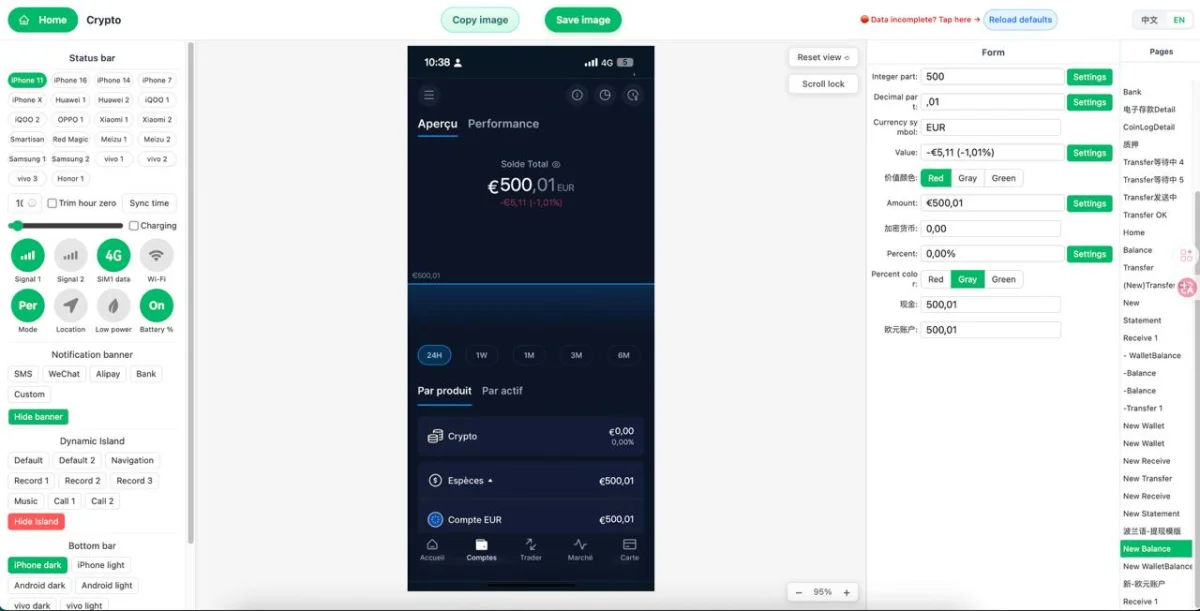
Fine-Tuning the Header and Status Bar for Realism
Small interface details can make a big difference in a chat screenshot. The top section of the screen helps anchor the image as a believable mobile capture, so it is worth adjusting carefully in the screenshot template.
Edit the header
Make sure the chat title or contact name fits the tone of the message exchange. Keep the header simple and readable. If the title is too long, it may distract from the conversation itself.
Replace the avatar if needed
If the template allows avatar editing, use a profile image that matches the overall style. A clean profile area helps the screenshot feel consistent.
Adjust the status bar
Zoobic supports status bar details such as:
- time
- battery
- signal strength
- carrier information
- modern device indicators where available
These details help the screenshot look complete. For a Snapchat-style mockup, the top bar should support the design, not dominate it.
Keep the overall balance
If the header, avatar, and status bar are all too busy, the chat screen can feel crowded. The best result usually comes from keeping those details clear and understated.
This is one of the reasons a dedicated Snapchat chat screenshot tool is better than general-purpose editing. Zoobic gives you targeted controls for the interface elements that matter most, all inside the browser.
Creating a Clean and Readable Mockup Before Export
Before you export PNG, it is worth doing one final review of the screenshot. A polished screenshot template is not only about realism; it also needs to be easy to read.
Check line wrapping
Long messages may wrap in a way that changes the visual balance. If that happens, shorten the text or revise the phrasing so the bubbles fit better.
Review spacing
The gaps between messages should feel natural. If the screen looks too dense, remove one message or simplify the wording.
Confirm alignment
Look at the header, message bubbles, and timestamps together. They should feel visually connected. If one section looks off, adjust it in the form panel and preview again.
Zoom out once
A screenshot may look fine while editing but different when viewed at normal size. Zooming out helps you see the image the way viewers will actually experience it after PNG export.
Check for consistency
Make sure the name, chat flow, timestamps, and device details all match the same scenario. A consistent mockup is always more convincing than one filled with mixed details.
Zoobic’s live preview makes this easy because you can see the result immediately. That is the advantage of using a browser-based online editor for a Snapchat-style screenshot template.
Exporting the Final PNG and Reusing the Mockup
After the layout looks right, the final step is to export PNG. Zoobic supports high-quality PNG output, which is the right format for clean sharing and reuse.
Why PNG is useful
PNG keeps the screenshot sharp, especially for text-heavy layouts like chat screenshots. It is a reliable format for:
- slides
- content drafts
- educational materials
- creative briefs
- social visuals
- internal demos Zoobic also supports copy-to-clipboard style workflows where needed, which can speed up reuse in documents or design boards. But for most cases, PNG export is the safest and cleanest option.
Keep editable versions
If you plan to make several variations, keep the template open and reuse the same online editor workflow. You can change the conversation, adjust the header, and export another version without rebuilding the design from scratch.
Use the mockup across formats
A good Snapchat chat screenshot tool should give you a reusable asset, not a one-time file. A well-made screenshot template can be adapted for multiple outputs, such as a presentation slide, article image, or storyboard frame.
Zoobic is strong here because it keeps the process inside the browser and makes repeat editing easy. That is especially useful when you need several mockups that share the same interface style.
Practical Use Cases for Snapchat-Style Chat Screenshots
A Snapchat-style mockup can support many kinds of creative and educational work. When used correctly, it is a flexible visual format rather than just a decorative image.
Content creation
Chat screenshots can help illustrate dialogue-driven ideas, social story concepts, or short-form content planning. A clear screenshot template makes the message easy to understand.
Learning and interface study
A browser-based online editor is useful for studying chat layout, spacing, and interface hierarchy. It lets you focus on structure and readability.
Presentations and briefings
A polished screenshot can show how a conversation-based interface might appear in a broader product or campaign context.
Storyboarding
If you are planning a scene or narrative, a chat mockup is a quick way to visualize the exchange before the final version is produced.
Editorial and visual drafts
Writers, designers, and content teams often need a simple mobile-style visual to support an idea. A screenshot template is a fast way to build that asset.
Zoobic is especially useful in these workflows because it combines search, editing, preview, and PNG export in one place. That saves time and keeps the output consistent.
Why Zoobic Is a Smart Choice for Screenshot Template Editing
Zoobic is not limited to chat visuals, but it is particularly effective for them. The reason is simple: the editor is built around the kind of field-by-field changes that screenshot templates need.
Template-first workflow
You start with a ready-made layout instead of drawing the design yourself. This is ideal for a Snapchat chat screenshot template.
Fast browser editing
The online editor lets you change visible details quickly. That includes messages, names, avatars, timestamps, and status bar information.
Real-time preview
You can check the layout as you edit, which reduces trial and error and improves the final mockup quality.
High-quality export
Once the screenshot is ready, you can export PNG for use across different content formats.
Broad template coverage
With 8000+ templates and 300+ categories, Zoobic gives you enough variety to find the right chat style and adapt it to your project.
For anyone searching for a Snapchat chat screenshot tool, Zoobic offers the right combination of speed, control, and browser convenience. It is especially useful when you want to create a clean, structured image without leaving the web app.
A Simple Workflow You Can Reuse Anytime
If you want a repeatable process, this is the easiest way to think about it:
- Open Zoobic in the browser.
- Search for a chat-related screenshot template.
- Choose the layout that matches your scene.
- Edit the conversation fields, header, avatar, and status bar.
- Check the live preview for spacing and readability.
- Make final adjustments.
- Export PNG and reuse the mockup where needed.
That workflow is simple, but it is also effective. It gives you a clear path from a blank idea to a finished Snapchat-style chat image. Because everything happens inside the online editor, you can refine the result quickly and keep the design consistent.
For users who want to create a chat mockup that looks polished and readable, Zoobic is a practical solution. The combination of screenshot template selection, browser editing, live preview, and PNG export makes the process efficient from start to finish.